Routing Incoming Calls to a New Time Switch
If your new Time Switch displays a warning or doesn’t route calls correctly, it means incoming calls are currently directed to an extension, ring group, call queue, or another destination.
To enable time-based routing, calls must be routed through your Time Switch first.
Tip: Don’t have a Time Switch yet? Learn how to create one first.
A Time Switch is a routing object that directs incoming calls based on your time schedule and overrides.
During business hours, calls may go to an Extension or Ring Group.
After hours, calls can be redirected to Voicemail or another destination.
If calls don’t work as expected after changes, simply revert the Route to setting back to an Extension, Ring Group, or External Number.
Log in to your My Account portal.
Navigate to the Number Routing section.
Press the Edit button on the right-hand side of the incoming number you want to modify.
From the Route to drop-down menu, select your Time Switch.

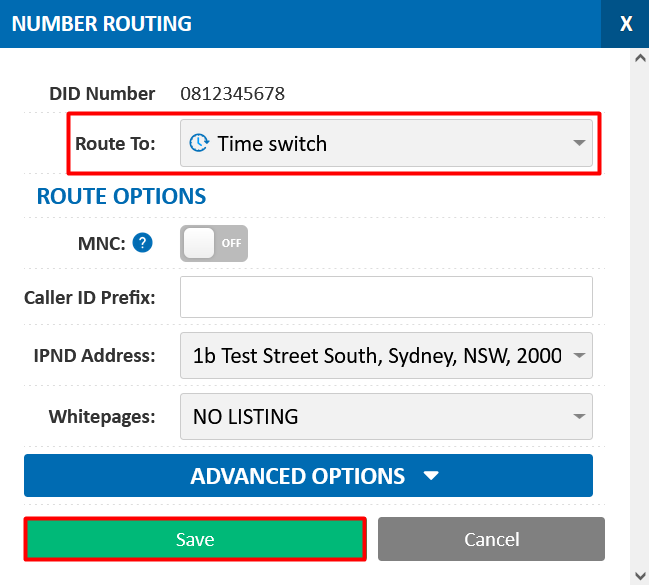
5. Click Save to apply changes.
In the My Account portal, go to Hosted PBX → IVR Menus.
Press the Edit button on your IVR menu.
From the Button 0–9 drop-down list, choose your Time Switch.
Click Save to update the routing.


