Install Microsoft Office on Your Device – Windows
Your college provides access to both the online and desktop versions of Microsoft 365 Apps. These include Word, Excel, PowerPoint, Outlook, Teams, and OneNote. For Windows users, the suite also includes Publisher and Access.
Follow the steps below to install Microsoft Office on your Windows device.
Open your web browser and go to:
🔗 https://portal.office.com/Account#installs
Sign in using your organisation provided username and password.
These credentials will be provided by the Support Operator
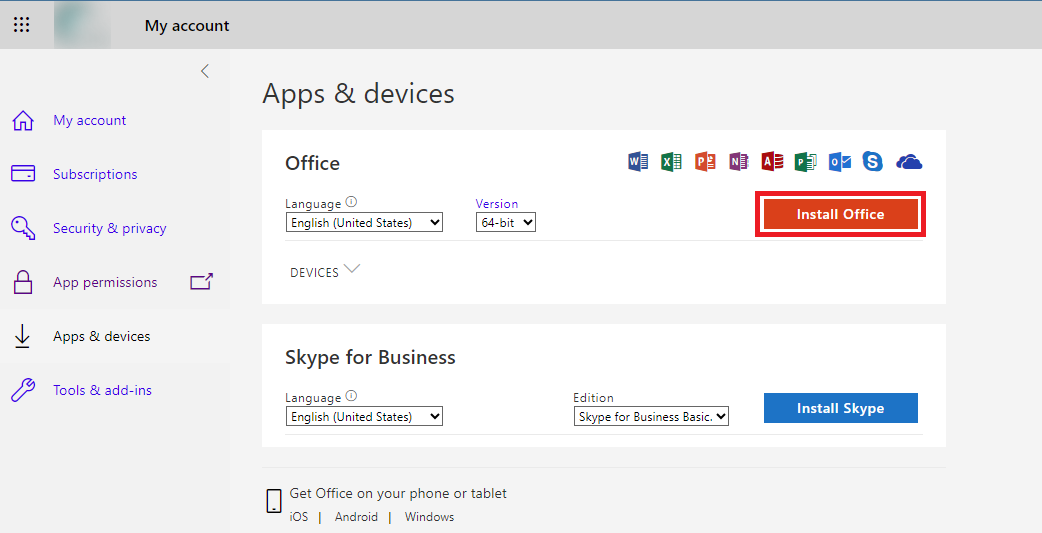
Once signed in, the My Account page will load.
Click on the Install Office button.
The Office installer will begin downloading automatically.
Locate the downloaded file (usually in your Downloads folder).
Double-click the file to start the installation.
If prompted by Windows asking for permission to make changes, click Yes.
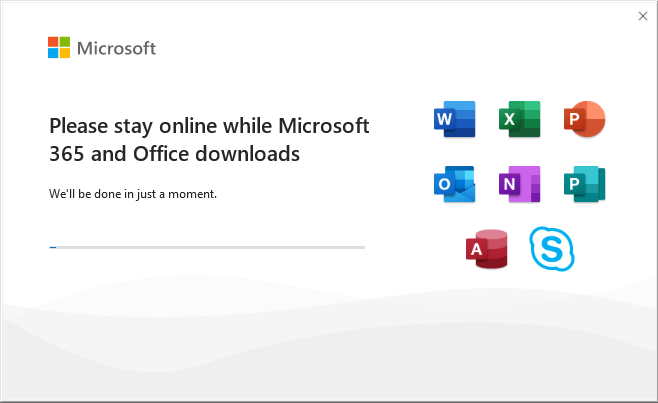
You will see several progress screens during installation.
Do not close these windows.
Ensure you have a stable internet connection and your device is plugged into power.
The installation process may take several minutes, depending on your internet speed and device performance.

Once the installation finishes, open any Microsoft 365 app (e.g., Word or Excel).
When prompted, sign in using your college username and password to activate Office.
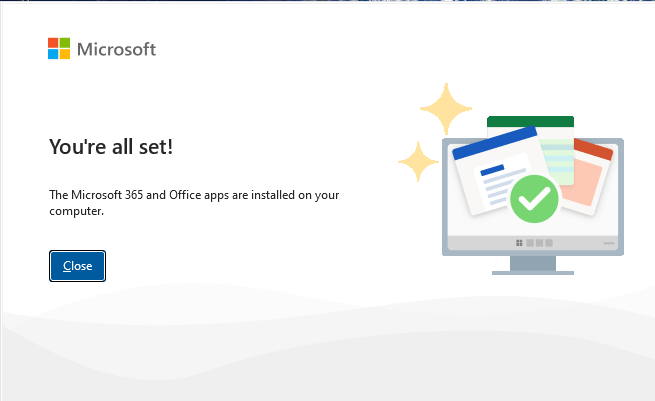
You are now ready to use Microsoft 365 Apps on your Windows device.

