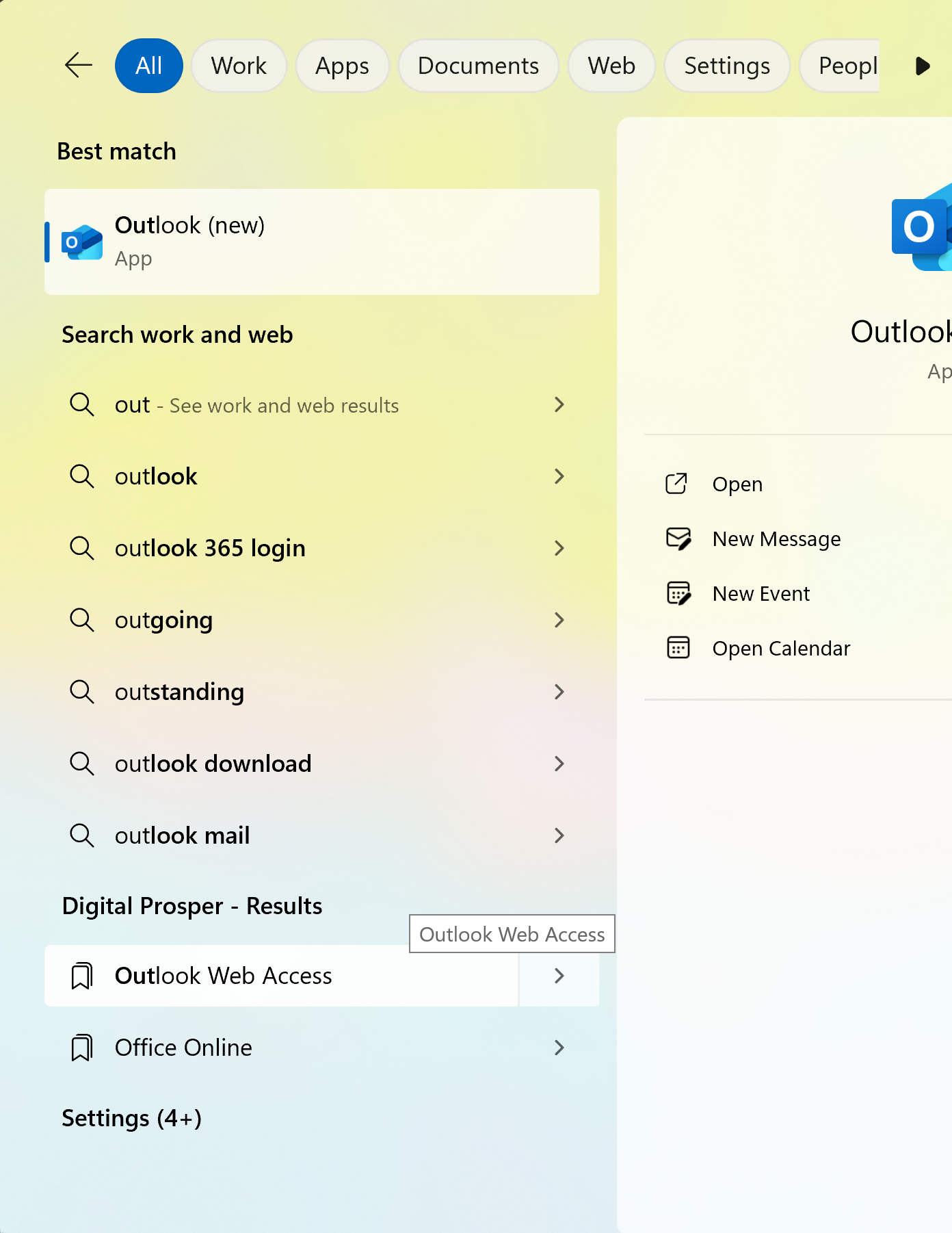
Open Outlook
Launch the Outlook app on your computer.
2. Enter your email
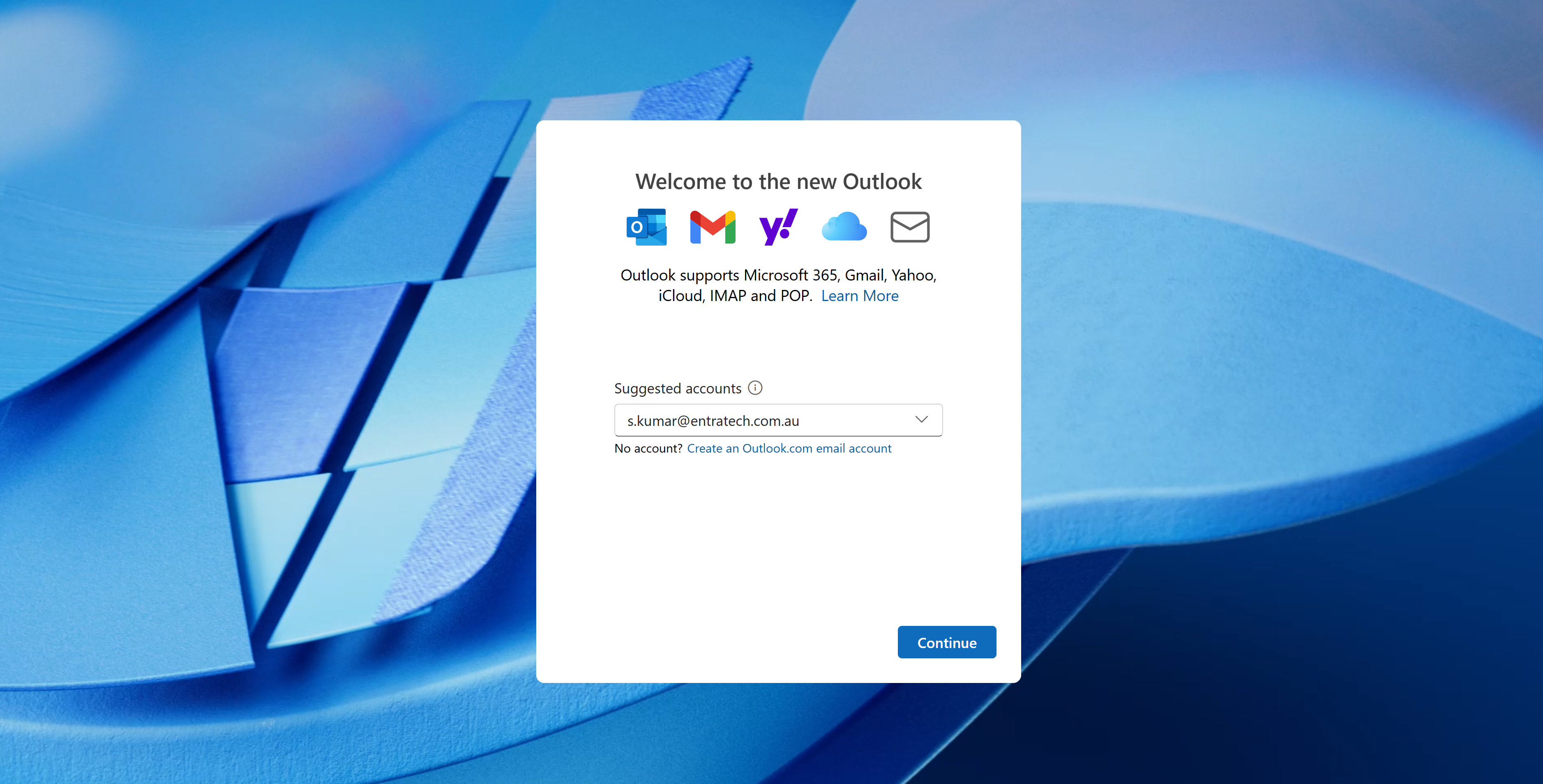
When the setup window appears, type your address (e.g., yourname@example.com) and click Continue.
Enter your password
Outlook will try to detect your provider’s settings. If prompted, enter your email password and click Connect.
Choose manual setup (if needed)
If automatic setup fails, pick IMAP, POP, or Exchange and enter the incoming/outgoing server settings from your email provider’s support site.
Finish
When the account connects successfully, click Done.
Microsoft 365 / Exchange accounts often auto-configure with no extra steps.
Gmail, Yahoo, and other providers:
If you use two-step verification, create an app password for Outlook and use that instead of your normal password.
IMAP is recommended over POP unless you specifically need POP.
If you’re unsure of server details (IMAP/POP/SMTP names, ports, SSL/TLS), check your provider’s help pages.

